How to use HeyChat
From signing up to your first quote, step by step.
01
Create your business
Setup takes a few minutes, and you can start chatting straight away.
- On heychat.cc, press Create your business.
- Enter your business name, choose your link (heychat.cc/your-name) and pick a brand colour. If someone gave you a code, press Have a code? and enter it. Then press Continue.
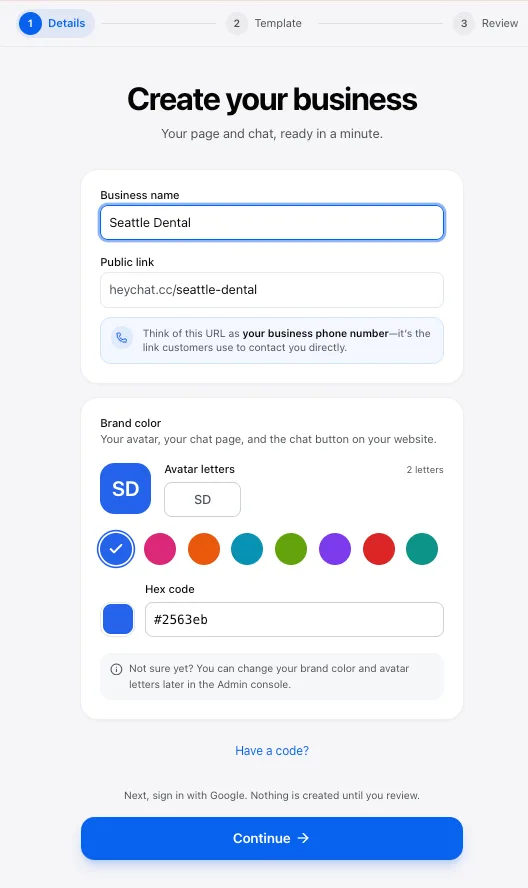
- Sign in with Google. That account becomes your business’s first admin.
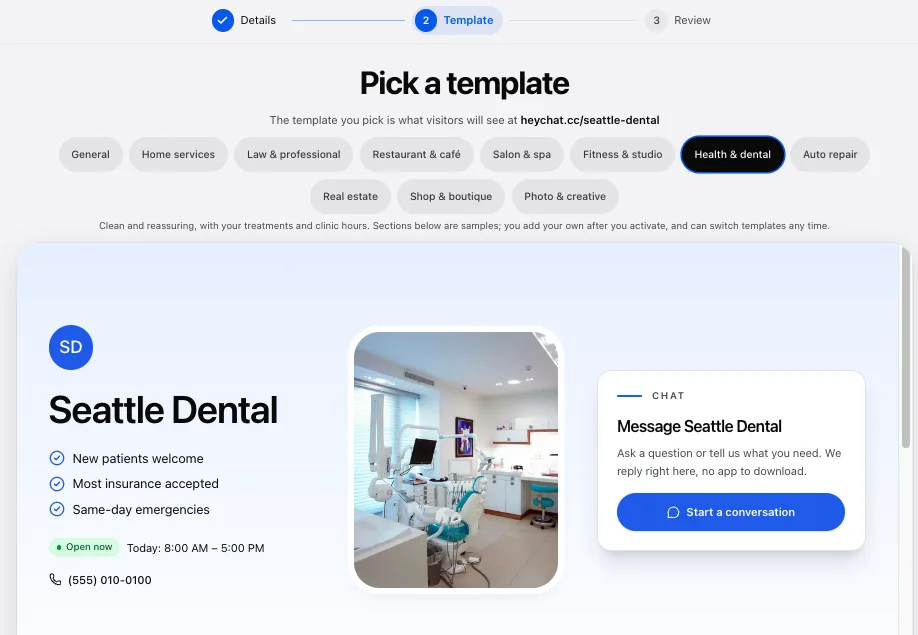
- Pick a template. It’s what visitors see at your link, and you can switch templates any time.
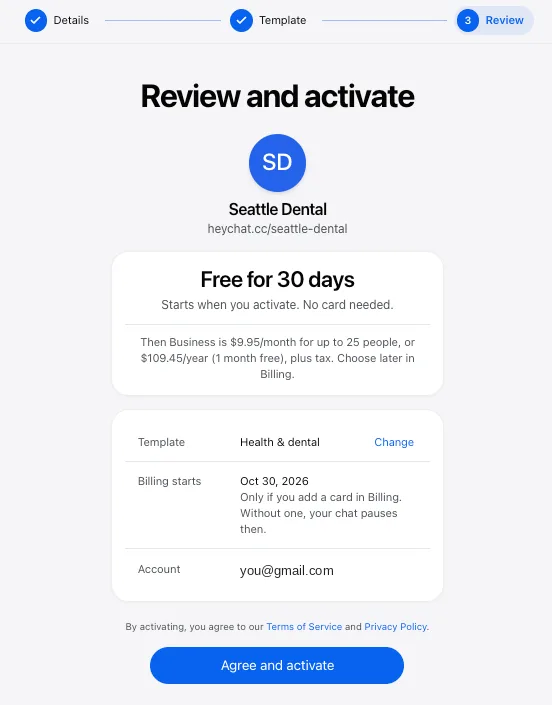
- Check the review page, tick the boxes to accept the Terms of Service and Privacy Policy, and press Agree and activate. You’re free for 30 days, with no card needed.
02
Add the chat to your website
One line of code puts a chat bubble on every page of your site. Customers can message you from it with no app or account.
- In HeyChat, open Admin → Settings and find Website widget.
- Press Copy to copy your snippet. It’s one line that looks like the example below.
- Paste it just before the closing </body> tag of your site. Put it in the footer or template your pages share, so it loads everywhere.
- Publish your site, then open it. A chat bubble in your brand colour appears in the corner.
- Send a test message from the bubble. It should arrive in your HeyChat inbox within seconds.
<script async src="https://heychat.cc/widget.js" data-business="your-name" data-color="#2563eb"></script>No website?
Share your chat page at heychat.cc/your-name instead: in texts, email signatures, on business cards and on your social profiles.
Recognise customers who sign in to your site (optional)
If your website has its own logins, HeyChat can recognise those customers on any device without asking them to sign in again. In Admin → Settings → Website widget, press Generate secret and hand the steps shown there to your developer: your server signs each visitor’s id with the secret, and your page passes that signature to the widget. Keep the secret on your server. Never put it in your web page or send it to the browser.
If the bubble doesn’t appear
Check that you published your site after pasting, that the snippet went into a code or HTML area rather than a text block, and that your website plan allows custom code. If it opens the wrong business, make sure data-business matches your HeyChat link. If two bubbles appear, the snippet was pasted twice.
03
Bring in your team
Everyone works from the same inbox, so no customer waits on one person.
- Open Admin → Team and press Add member.
- Enter their email and choose team member or admin. Admins can also manage the team, your settings and automatic answers.
- They sign in with the Google account for that email and see the same conversations you do.
- When HeyChat offers notifications, press Turn on. On iPhone, add HeyChat to your Home Screen first, or notifications can’t come through.
05
Send a quote
Agree on the work in the same place you talked about it.
- In the conversation, press Create a contract next to the message box.
- Add a title and line items with a quantity and unit price. HeyChat adds up the total.
- Send it. Your customer can Accept, Decline or Request changes in one tap.
- If they ask for changes, edit the contract and send it again. Every contract has a printable version for your records.
06
Set up automatic answers
Write the answer to a question you get every day once. HeyChat sends it word for word, so it never makes up a price or a promise.
- Open Admin → Answers and press Add answer.
- Write the question, a few other ways customers ask it, and your answer.
- Keep Turn on Automatically Answer checked to reply straight away, or uncheck it to have HeyChat show the answer to your team first.
- Already have the information written down? Open Admin → Knowledge, press Add knowledge and paste your website, a brochure or notes. HeyChat turns it into short replies. Check them, edit any you like, and press Use this.
- To reply when nobody is free, turn on the Away message under Admin → Answers and choose how many minutes a customer waits before it goes out.
- Check the list of questions HeyChat couldn’t answer. It’s ranked by how often each comes up, so write the next answer from the top.
07
Follow up on leads
Customers who leave their name, email or phone number become contacts on their own. They never see your contacts list.
- Open Contacts to see everyone who has left their details, with what they asked about.
- Set a status as the job moves along: new, contacted, quoted, won or lost.
- Add a follow-up date and notes the whole team can see.
08
Block spam
Stop someone from reaching your business in two taps.
- Open the conversation’s ⋮ menu and choose Block.
- They lose access to all of your business’s chats. You can unblock them later from Blocked, in the left-hand rail or the tab bar on a phone.
Stuck on a step? Ask us in chat.
Ready to get started?
Create your business and start chatting in minutes. 30-day free trial, no card.
Create your business